Quick Answer
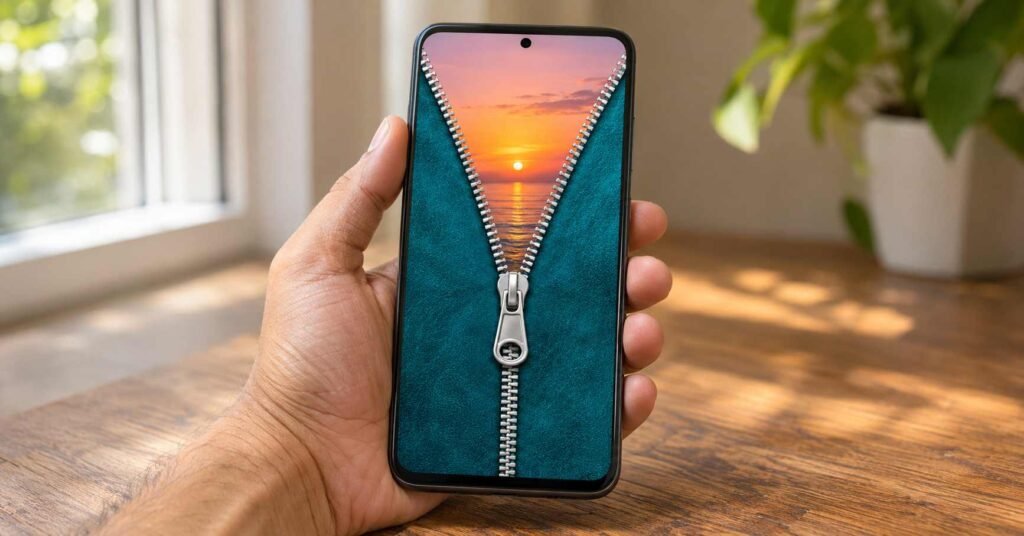
A zipper lock screen on Android is worth trying when you want the opening animation itself, along with a different background. CodoSol’s app advertises ready-made themes, personal photos and adjustable zipper designs. Start with a simple theme and check how it fits your normal routine. Leave Android’s device lock active, review access requests and resolve any privacy concerns before committing.
The best-looking phone theme is not always the one you want to use every day. A bright zipper effect can make an attractive first impression, yet your lock screen also has a practical job: helping you check information and get back to what you were doing.
Think about a typical morning. You glance at the time, notice a message and put the phone away. Later, you answer a call or open an app while carrying a bag. A design that feels enjoyable during a relaxed preview may feel different when your attention is elsewhere.
That does not make interactive themes a bad choice. It means the right design depends on your habits. Someone who enjoys deliberately opening a decorative screen may value the zipper movement. Someone who mostly wants a favourite photo might get the desired result through the phone’s existing wallpaper controls.
This TNAI guide approaches Zipper lock screen & wallpaper as a daily-use decision. You will find a way to choose a workable layout, understand the advertised setup, and judge the result during ordinary use. There is also a purchasing check and a closer look at the developer’s privacy disclosures. The aim is to help you keep a theme because it suits you, with a clear understanding of the compromises involved.
Table of Contents
Quick Overview: What to Decide First
| Part of the decision | What matters most |
|---|---|
| The reason for installing | Whether you want the zipper interaction or simply a new picture. |
| The layout | A background that works around important information and touch targets. |
| The everyday experience | Comfortable opening, readable notifications and acceptable performance. |
| The commitment | Access you understand, clear purchase terms and adequate privacy information. |
Choose Between a New Background and a New Interaction
Start by naming the change you actually want. “I want my pet on the lock screen” is a different goal from “I want to pull a zipper whenever I open the phone.”
For the first goal, try the wallpaper options already on your device. For the second, the developer’s advertised zipper controls may be relevant. The listing describes themed artwork, custom images, different zipper tabs, colour and position adjustments, and a live preview.
Those controls offer creative flexibility. Their value depends on whether you enjoy using the completed design after the initial editing session.
If you mainly want to browse background images, our QHD Wallpapers setup guide covers a different approach. Choose a category of tool according to the change you need, rather than installing several customisation apps at once.
Build the Design Around Three Useful Areas
1. Leave Space for Information
Look at where your phone displays its clock and notification cards before selecting artwork. A calm section of the image can make a better background for text than a face, patterned clothing or glitter.
For example, a photograph of a dog against a plain wall gives you different placement options from a close-up that fills every corner. Judge the image with your normal screen information visible, rather than as a picture viewed on its own.
2. Make the Zipper Easy to Find
The advertised tab and colour controls can help the zipper stand out from the background. A similar colour everywhere may look coordinated but make the moving element harder to recognise.
Try the design while holding the phone as you normally do. If you usually use one hand, check whether the gesture feels comfortable in that position. We have not measured the app’s gesture area or reachability, so use your actual device to make this decision.
3. Protect the Main Subject of Your Photo
A central zipper may divide the most important part of a portrait. Before importing a favourite image, consider where its subject will sit relative to the opening effect.
Try an image with some surrounding space, then use the available positioning controls. If a group photograph becomes awkwardly divided, choosing another composition may work better than repeatedly changing the zipper style.
Design around the phone’s usable screen, including its existing controls. Do not assume that every visual element in a theme can be moved independently.
Set Up One Design, Then Leave the Editor
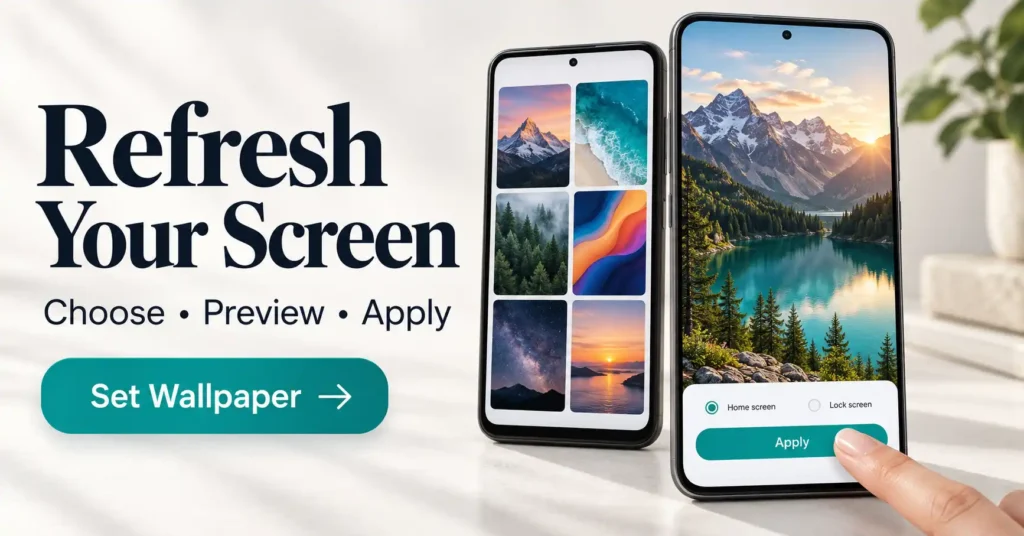
The developer describes a straightforward sequence: choose a theme or image, customise the zipper, preview it and apply the result. This is the advertised workflow; we have not verified the exact controls inside the installed app.
- Open the official CodoSol app listing and check that it is available for your device.
- Begin with an included background so you can evaluate the experience without selecting a personal photo.
- Choose one zipper style and adjust the available settings for contrast and placement.
- Follow the application prompts, reading any access request before making a choice.
- Exit the editor and inspect the phone in its normal locked and unlocked states.
Do not spend an hour creating several combinations before confirming that one works as you expected. You can return to the design choices after the basic experience suits you.
Judge the Result During Your Normal Routine
The following are practical checks to try, not findings from a TNAI test.
When You Only Want to Check Something
Wake the screen to read the time or notice a message. Can you get the information you normally use without unnecessary interaction? Check both a quiet screen and one with your usual notifications.
If message privacy matters, review Android’s lock-screen notification settings separately. A decorative closure should not be treated as proof that message content is hidden. Google explains the choices in its notification controls guide.
When You Need to Open the Phone Quickly
Notice the complete sequence from waking the phone to reaching the app you need. If the zipper introduces another gesture, decide whether you like that extra interaction.
Keep the native Android PIN, pattern or password configured. The supplied promotion includes an app PIN screen, but we have not evaluated its security or recovery behaviour. Google’s screen-lock documentation explains the device’s own authentication options.
If a decorative screen makes access feel slower, simplify or remove the decoration. There is no need to weaken device authentication to make a theme feel quicker.
When the Phone Has Been Idle or Restarted
Check the next ordinary call you receive and the result after restarting the phone. Confirm that you can reach the expected controls and that the design appears where you wanted it.
If something behaves unexpectedly, record the symptom before changing settings: for example, “the editor preview works, but the effect is absent after waking.” That description is more useful to support than simply saying that the app is broken.
A missing effect does not reveal its cause. Check the app’s own setup guidance and Android access settings; avoid granting unrelated access or changing several battery settings at once.
Check Battery Use with Evidence from Your Phone
The supplied store details show a 13 MB download for one compatible device. Download size describes the package transferred, rather than how much energy the running app will use.
If battery life seems worse after installation, review your phone’s per-app battery information. Google’s Pixel battery guide shows how to examine app usage on Pixel phones; other brands organise these controls differently.
Compare similar periods of ordinary use and consider changes such as gaming, video calls or a weak mobile signal. A single battery percentage cannot isolate the cause. We have no measurements that establish this app’s battery impact.
Things to Know Before Installing: Access and Privacy
Match Each Request to the Feature You Chose
Using a photo and allowing an app to appear over other screens are different kinds of access. Understand each request on its own.
If Android’s Photo Picker appears, you can share selected media rather than treating the entire gallery as necessary. Whether this app uses that picker has not been verified.
Read the stated purpose before enabling any overlay or accessibility service. Accessibility can provide substantial access to screen content and actions, as Google explains in its restricted-settings guidance. If the reason is unclear, pause the setup.
These are general access checks. They are not a confirmed list of permissions requested by this app. To review ordinary permissions later, open Settings → Apps → the app → Permissions, allowing for manufacturer differences. See Google’s permission-management instructions.
Ask Which Privacy Practices Apply to This App
The public Play declaration reports no collection or third-party sharing and says data is encrypted in transit. The developer supplies that information.
Its linked CodoSol privacy policy describes practices across multiple games and apps. It mentions advertising services and possible retention of device and usage analytics for up to 24 months. The reviewed text does not clearly map these practices to this specific product.
Two useful questions for support are:
- Which advertising or analytics services, if any, operate in the current zipper app?
- When a user selects a custom photo, does processing stay on the device or involve a server?
We do not have verified answers. The broad policy also does not prove that this app performs every activity it describes. If the uncertainty is unacceptable to you, choose your phone’s existing wallpaper tools.
Limitations That Could Change Your Decision
- Appearance is the advertised benefit. The available information does not establish stronger device security.
- Daily convenience varies. Someone who enjoys an opening gesture may accept an interaction that another person finds repetitive.
- Support for your device needs checking. A minimum Android version alone cannot demonstrate consistent results across different phone software.
- Costs are not fully explained by a price range. We have not confirmed which current themes are free, the advertising frequency or the complete paid-feature breakdown.
- Some important claims remain untested. This guide contains no measured performance results or independent security assessment.
Who Is Likely to Enjoy It?
Consider trying the app if creating and using an interactive theme is part of the enjoyment. It may appeal to people who like matching background artwork with a decorative opening effect and are comfortable managing Android app access.
Who Should Avoid It?
Choose a simpler option if your priority is immediate access, minimal setup or a single photo background. Also skip the app if its access requests or privacy explanation do not meet your expectations.
If your goal is changing a manufacturer’s actual fingerprint animation, investigate the phone’s own settings. A zipper theme does not establish control over that feature. Our fingerprint animation explainer discusses the difference between screen decoration and biometric functions.
Your Decision After Trying It
| What you discover | Sensible next step |
|---|---|
| The gesture feels enjoyable and the screen stays usable. | Keep one design and review any paid offer on its own merits. |
| You like the picture but rarely want the animation. | Use an image through the device’s standard wallpaper controls. |
| You prefer a coordinated clock or layered background. | Compare a different type of personalisation tool, checking compatibility and access again. |
| The design obstructs routine tasks or the privacy position remains unclear. | Remove it and return to a setup you understand. |
For the clock-and-background option, see our live clock wallpaper guide. It serves a different visual goal and still has its own limitations to consider.
Bonus App Card
| Detail | Information |
|---|---|
| Name and platform | Zipper lock screen & wallpaper — Android |
| Publisher | CodoSol |
| Official download | View on Google Play |
| Category | Personalization |
| Advertised purpose | Combine backgrounds and personal photos with customisable zipper effects. |
| Downloads | 100,000+ |
| Rating | 3.5/5 from 484 reviews in the supplied screenshot; check the live regional score. |
| Updated | 2 November 2026 |
| Version and release date* | 1.1.3; first released 7 April 2026 |
| Android requirement* | Android 8.0 or later |
| Download size* | 13 MB in the supplied compatible-device view; not a universal size. |
| Purchases* | In-app purchases; supplied Indian pricing ranges from ₹340 to ₹2,200 per item. |
| Privacy position | Review the app-specific Play declaration alongside the broader linked policy. |
| Support email | info.gamerstudio@gmail.com |
Information reviewed on 4 November 2026. Asterisked details and the rating come from the supplied Play Store view rather than a newly verified device installation. Check current availability, compatibility and purchase terms in your own listing.
How to Uninstall and Return to a Simpler Screen
Use the app’s disable control first if one is available. Then open its Android App info page and choose Uninstall. Removing an icon from the home screen alone may only remove the shortcut.
You can also select the app under Play Store → profile → Manage apps & devices → Manage and uninstall it there. Google provides official app-deletion steps.
Review the wallpaper and device-lock settings afterward. If you subscribed to a paid plan, manage that subscription separately through Google Play; deleting an app does not stop subscription billing. This applies only if you actually accepted a subscription.
Frequently Asked Questions
Does Watching the Preview Mean the Theme Is Already Applied?
A preview demonstrates the design inside the editor. Confirm application by leaving the app, locking the phone and waking it again. Follow any remaining setup prompts only after understanding what they request.
Why Does the Zipper Run Through the Important Part of My Photo?
The composition may place the subject in the same area as the effect. Try the advertised position controls or use a picture with more space around the subject. Some images simply fit this layout better than others.
Must I Share My Entire Photo Library to Use One Image?
Use a selected-photo option if the app and Android version offer it. Google’s Photo Picker supports sharing chosen media. We have not confirmed the image-selection method used by the current app version.
Can I Keep My Existing Home-Screen Background?
Check the destinations and settings shown during application. The reviewed description does not establish every possible home-screen and lock-screen combination. Confirm the result on both screens before spending time creating a theme.
Does a Small Download Guarantee Low Battery Consumption?
No. Package size and energy use describe different things. Use your phone’s battery information and ordinary experience to evaluate performance. The supplied 13 MB figure is not a battery test.
Will Buying a Theme Fix an Awkward Unlocking Experience?
Do not assume a purchase changes the opening sequence or compatibility. Pay for a clearly described feature you want after the basic setup works well enough for you. Check any renewal terms before confirming.
About This Guide
TNAI provides independent app explanations based on public sources and practical analysis. This article draws on the official listing, linked developer policy, supplied store details and Google help documentation. No installation, security audit or hands-on performance test was carried out for this guide. Features and disclosures may change.
Final Recommendation
Choose a zipper lock screen on Android when you enjoy the interaction enough to use it repeatedly. CodoSol’s advertised background, photo and zipper controls provide creative options, but everyday usability and clear access requirements matter more than an impressive preview. Keep Android authentication active, evaluate one design during normal use, and review the privacy explanation before paying. For a straightforward picture change, the existing wallpaper picker is often sufficient.