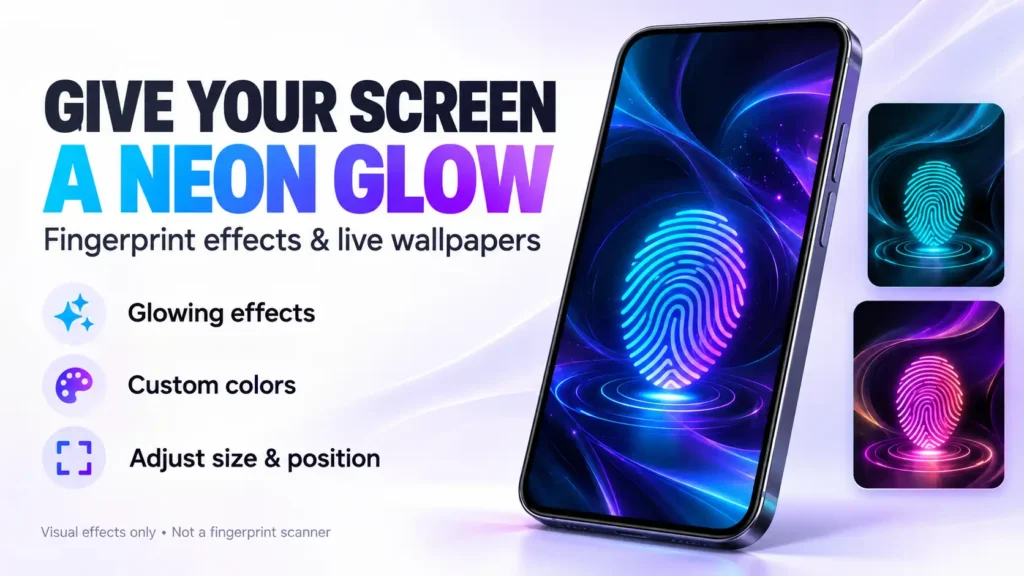
A glowing fingerprint effect can give your Android screen a different look. But does a fingerprint animation app also change how your phone unlocks?
Fingerprint Lock 3D Animations is a wallpaper personalization app—not a replacement for your phone’s fingerprint security. Its purpose is to help you combine decorative effects with a background image.
Here is what to know before installing it.
Quick Answer
Fingerprint Lock 3D Animations lets you combine wallpapers with decorative fingerprint effects, adjust their position and size, and save your designs. It is aimed at people who enjoy customizing their phone’s appearance.
It does not add a fingerprint sensor, improve fingerprint recognition, or replace your existing screen lock. Before installing, check wallpaper compatibility, ads, purchase options, and the privacy disclosures discussed below.
App Details and Current Update
| Detail | Information |
|---|---|
| App | Fingerprint Lock 3D Animations |
| Developer | Ravi Techno Apps |
| Category | Personalization |
| Downloads shown | 50K+ |
| Monetization | Contains ads and in-app purchases |
| Update date shown | February 27, 2026 |
| Listed update | Minor bug fixes and performance improvements |
These details were checked on October 26, 2026. The available update notes do not announce a major new feature. Store information and availability can change.
This guide is based on the public listing and linked privacy policy. It is not a hands-on performance review.
What Can You Customize?
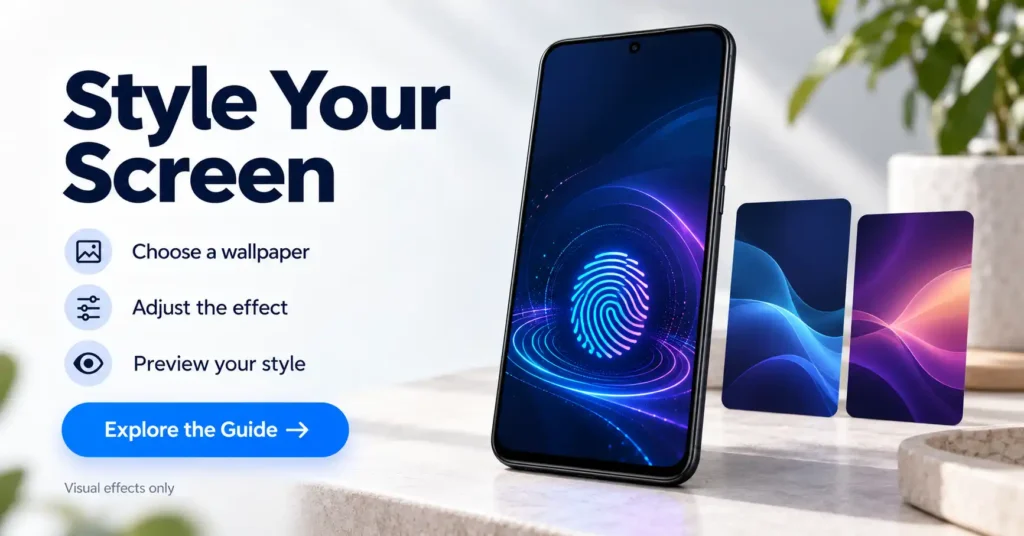
Combine an image with a fingerprint effect
According to the supplied feature description, you can choose a built-in wallpaper, select a gallery image, or capture a photo with the camera. You can then pair the background with one of the app’s fingerprint animations.
For a clearer design, choose a background with some empty space around the effect. A busy photograph may make the animation harder to distinguish.
Adjust the effect’s position and size
The app describes controls for moving and resizing the fingerprint graphic.
This is a visual adjustment. Moving the graphic does not move your phone’s actual fingerprint sensor or change where you must touch to unlock the device.
Before applying a design, check that it does not compete with the clock, notifications, or other information you need to read.
Preview and save your designs
You can preview the wallpaper and effect together, make changes, and keep completed themes in a saved collection. The description also lists options to reapply saved wallpapers and delete unwanted designs.
This could be useful if you prefer switching between a few matching backgrounds instead of creating a new design each time.
Does It Change the Real Fingerprint Unlock Animation?
Do not expect it to replace your phone manufacturer’s biometric unlock animation.
The developer explicitly describes the effects as decorative and says the app does not control the fingerprint sensor or security settings. A wallpaper graphic should not be confused with the system interface that verifies your fingerprint.
For example, placing a fingerprint symbol near the bottom of the display will not turn a phone with a side-mounted sensor into a phone with an in-display sensor.
If your goal is to change the animation shown during actual fingerprint authentication, first check whether your phone offers that option in its own settings.
How to Set Up a Fingerprint Wallpaper
The developer describes the following general workflow; exact button names may differ.
- Install the app from its official Google Play listing.
- Choose a built-in background, gallery image, or camera photo.
- Select a fingerprint animation.
- Adjust the graphic’s size and position.
- Preview the design and make any changes.
- Apply it using the wallpaper options available on your phone.
- Save the theme if you want to reuse it.
After applying it, check both the home screen and lock screen. A successful preview inside the app does not establish that every display mode will behave identically.
Keep your existing PIN, password, pattern, or fingerprint protection enabled. There is no reason to remove your normal screen security to use a decorative wallpaper.
What to Check Before Installing
Wallpaper behavior on your phone
Test whether the design appears on the screen you intended. Do not assume support for the lock screen, always-on display, and home screen is identical.
Check the actual result before paying for an effect or spending time creating several themes.
Ads and purchase options
Google Play marks the app as containing advertisements and in-app purchases. Check the price and terms of any offer before accepting it. This guide has not verified ad frequency or which designs require payment.
Permission requests
The description associates camera and storage access with capturing or selecting wallpaper images.
Grant access according to the feature you choose to use. Where your phone offers a selected-photo option, consider sharing only the image you need. If a permission request has no clear connection to wallpaper creation, check its explanation before proceeding.
Battery use and smoothness
There are no hands-on battery measurements in this guide. After applying an animated design, watch for unusual battery use, warmth, or stuttering during your normal routine.
If the result is distracting or feels less responsive, switch back to a static wallpaper and compare.
Privacy: The Disclosures Need Clarification
Google Play’s Data safety section declares no data collection or third-party sharing. These are developer-provided declarations, not an independent privacy audit.
However, the linked privacy policy applies across Ravi Techno Apps’ products and describes possible collection of personal, device, and usage information, along with possible sharing of non-personal information for promotion.
The broad policy does not establish which practices apply to this specific app. Nevertheless, the difference means an unconditional claim that it “never collects any data” would be inappropriate.
Privacy-conscious users should review both disclosures and seek clarification from the developer if needed.
Pros and Limitations
Potential advantages
- Combines personal photos with decorative fingerprint effects.
- Offers position and size adjustments.
- Includes preview and saved-theme features.
- Provides a way to refresh the screen’s appearance.
Limitations
- Does not upgrade fingerprint security or recognition.
- Does not turn an ordinary display into a fingerprint sensor.
- Includes ads and in-app purchases.
- Wallpaper behavior needs checking on your device.
- The app-specific privacy declaration and broader policy need clearer alignment.
Is It Worth Trying?
Fingerprint Lock 3D Animations may suit users who want a decorative fingerprint-style wallpaper and enjoy experimenting with backgrounds.
Start with one simple design. Check its appearance, permission requests, ad experience, and everyday performance before considering a purchase.
If you want faster unlocking, stronger biometric security, or a replacement for your phone’s native fingerprint animation, this app does not serve that purpose.
Frequently Asked Questions
Can it add fingerprint unlocking to a phone without a sensor?
No. A decorative fingerprint graphic cannot add biometric hardware.
Will moving the animation move the fingerprint scanning area?
No. The adjustment changes the artwork’s position, not the location of your phone’s sensor.
Can I use my own photo?
The developer’s description lists gallery images and camera photos as wallpaper options.
Is it completely free?
The listing includes ads and in-app purchases. Do not assume that every effect or option is available without payment.
What if the design appears only on my home screen?
Recheck the wallpaper destination offered when applying it. If the expected lock-screen option is unavailable, contact the developer about compatibility rather than changing your security settings.
How do I remove the effect?
Choose another wallpaper through your phone’s wallpaper settings. You can then uninstall the app if you no longer want it.
Official download: Fingerprint Lock 3D Animations on Google Play