Quick answer: If a photo looks sharp in Smart File Recovery but blurry after you save it, you may have found a small preview or a compressed copy. Open the saved image in your gallery and check its pixel dimensions. If the file won’t open at all, check that it actually saved before trying another scan.
A family photograph can look perfectly clear in a grid of search results. You recognize the faces and the clothes. Then you open it to print a copy, and the eyes lose their detail. The scan found the right picture, but did it find the right file?
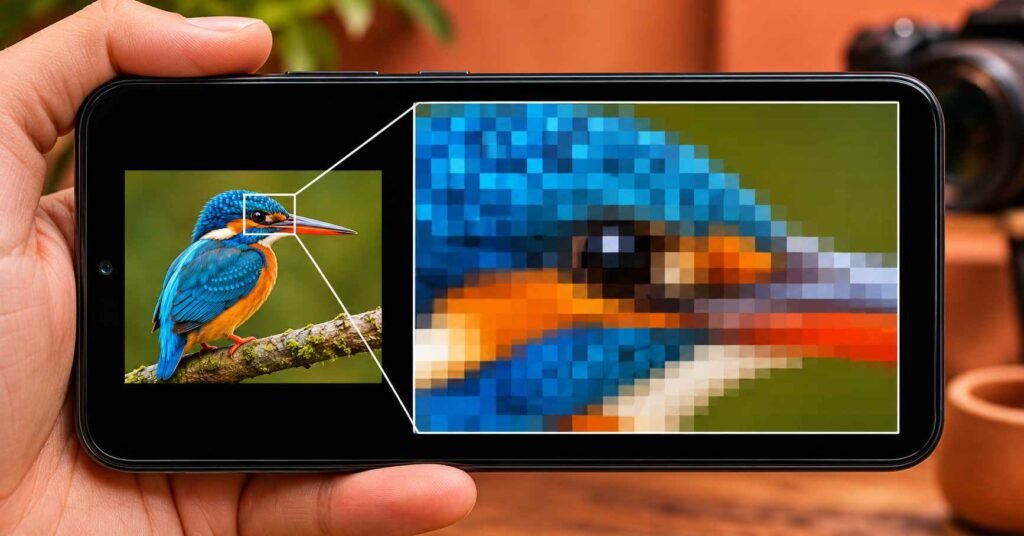
One photograph can survive in several forms: the camera image, a smaller version sent in a chat, a screenshot, and a thumbnail used to display an album. They all show the same moment. The difference becomes visible when you enlarge a face, crop a group photo, or try to read handwriting in the background.
Take a school certificate photographed on a phone. On a small screen, both the camera image and a thumbnail may show the student holding the certificate. If you need a picture for a contact profile, either might work. If you need to read the name printed on the certificate, only the copy that captured those letters clearly will do. That distinction gives you a better way to judge recovery than counting how many files an app found.
Quick overview: What does your result tell you?
| What you see | What to check first |
|---|---|
| Sharp in the results grid, blurry when enlarged | Open the saved file’s details and check its width and height in pixels. |
| Two or three versions of the same photo | Compare the same face, sign, or line of text in each version before deleting any. |
| A large image that still looks soft | Compare it with a known good copy. Large dimensions alone do not prove the original was sharp. |
| A preview in the app, but no photo in the gallery | Look in the folder you selected when saving. Try opening the file directly from your file manager. |
| A saved file that reports 0 bytes | That particular file contains no image data. Keep looking for another copy. |
Start with one photo and two numbers
Choose one image that matters and save it to a folder you can find again. Open it outside Smart File Recovery. In your gallery or file manager, look for Details, Info, or a similar option. Read the width and height rather than relying on the filename.
Suppose you find two copies of the same photograph:
| Copy | Dimensions | What those numbers mean |
|---|---|---|
| A | 320 × 240 | About 77,000 pixels. It can look convincing as a thumbnail. |
| B | 4,000 × 3,000 | 12 million pixels. It has room for much more detail, if that detail is present. |
These are illustrative numbers, not results from a Smart File Recovery test. Copy B has over 150 times as many pixels as Copy A. To decide which to keep, enlarge the same part of both images. Look for something you can identify: individual letters on a birthday cake, the pattern on a shirt, or the edge of someone’s glasses.
Why not just keep the file with the most megabytes? File size also depends on format and compression. A large screenshot of a small, blurry photo can take up more storage without revealing one extra letter. Dimensions help you shortlist the copies; visible detail helps you choose.
Why a scan can find a thumbnail after the original disappears
A thumbnail is a separate, smaller representation of a picture. Finding one can be valuable, especially when it is the only surviving image of someone. But enlarging that file does not bring back the camera detail it never contained.
This is a documented limitation in Android recovery software. For example, DiskDigger’s Android FAQ explains that its own limited scan can find cached thumbnails and that these can look pixelated. That is evidence of how this can happen, not proof that Smart File Recovery found your particular photo that way. Smart File Recovery’s listing describes scans for several file types but does not identify the origin of each result.
Also consider the original photograph. If someone moved during the exposure, the camera may have captured a full-resolution but blurry image. If a known older copy has the same blur in exactly the same place, another recovery attempt is unlikely to solve that problem.
If the recovered photo won’t open at all
A blurry picture and an unreadable file need different responses:
- Find the saved file itself. Open your file manager and visit the destination you chose. A preview still visible inside the scanner is not confirmation that an image was saved there.
- Check the file size. If it shows zero bytes, there is nothing in that saved copy to display. If the scanner still offers the result, try saving that one item again to a folder you can access.
- Try a second viewer you already have. If another gallery opens the file, the first viewer may not support its format. If neither opens it, the copy may be incomplete or damaged. Renaming it
.jpgdoes not convert or repair it. - Keep the untouched copy. If you try editing, converting, or sharpening it, work on a duplicate. That way you can still compare later attempts against the file you actually found.
Where to find a better copy without scanning again
Follow the photograph’s history. Who took it, where was it sent, and did anyone edit or print it? If a photographer emailed a wedding album link, the attachment or album may be a better source than a picture forwarded through a family chat. Ask for the camera file or original attachment rather than another screenshot.
In Google Photos, check the account used when the photo was taken. On Android, open the item and use More → About to check its backup details. Google distinguishes between Original quality, which preserves resolution and quality, and Storage saver, which can compress images. An existing backup is worth comparing even if it does not match the camera file exactly.
If it was a downloaded or edited image, check Google Photos → Collections → On this device. Google lets users choose which device folders to back up. A backed-up camera roll does not establish that an editor’s export folder was backed up too.
Bonus app card: Smart File Recovery
| Detail | Information |
|---|---|
| Official app | Smart File Recovery on Google Play |
| Developer and category | NAICOO PTE. LTD. · Android Tools |
| What the developer describes | Local scanning for recoverable photos, videos, documents, and audio on phone storage and SD cards. |
| Store snapshot | 4.5 stars and 100K+ downloads on the listing checked. Ratings can vary by storefront and do not measure original-quality recovery. |
| Update | October 31, 2026; the release notes mention bug fixes. The original release date, version, minimum Android version, and download size were not verified. |
| Privacy | The developer policy says recovered files stay on the device. Google Play’s Data safety panel also lists possible collection of photos, videos, and audio. |
| Support | naicoonancy@protonmail.com |
The store details and privacy disclosures are developer-provided. TNAI.in did not perform a hands-on recovery test.
Should you keep the result or keep looking?
| Your goal | Practical decision |
|---|---|
| A contact photo or small profile picture | Keep the recovered copy if the face looks clear at the size you will use. |
| A framed print or a crop of one person from a group | Compare the largest available copies and make a small test print before paying for a large one. |
| A readable receipt, certificate, or form | Check the smallest writing you need. If a name or number is unclear, request the original document. |
| The only surviving picture of a family member | Save the untouched file in two places, even if it is small. Continue looking for a better version without risking this one. |
Frequently asked questions
Can an AI photo enhancer restore the original face?
It may make a small face look sharper by generating plausible detail. That does not verify what the person actually looked like in the original photograph. Keep the recovered file and label the enhanced version separately, particularly for family archives.
Why does the recovered photo have today’s date?
Check whether the date shown is date taken or date modified. Saving a copy can give the file a new modification date. Today’s date alone does not tell you when the picture was taken or whether it is the original.
I can see a video thumbnail. Does that mean I recovered the video?
No. A still image can survive separately from the footage. Open the saved file in a video player, check its duration, and seek to the middle and end. A thumbnail alone cannot supply the missing frames or sound.
Will scanning the same thumbnail again improve its quality?
No. The useful outcome of another search would be finding a different, better copy. Rescanning or repeatedly saving the same small image cannot restore detail absent from that file.
How do I uninstall Smart File Recovery without losing the picture I found?
Save the picture to a folder you control, open it from your regular gallery, and copy it to a second location. Once you have verified that copy, open Settings → Apps → Smart File Recovery → Uninstall, or uninstall from its Google Play page.
Final takeaway
If Smart File Recovery finds a picture you thought was gone, save it before deciding whether it is good enough. Then ask one practical question: can you see the detail you needed? A thumbnail may be enough to recognize a loved one but too small for a framed print. If it falls short, the most useful next step is to find the camera file, backup, or original attachment. Keep the smaller copy while you look.