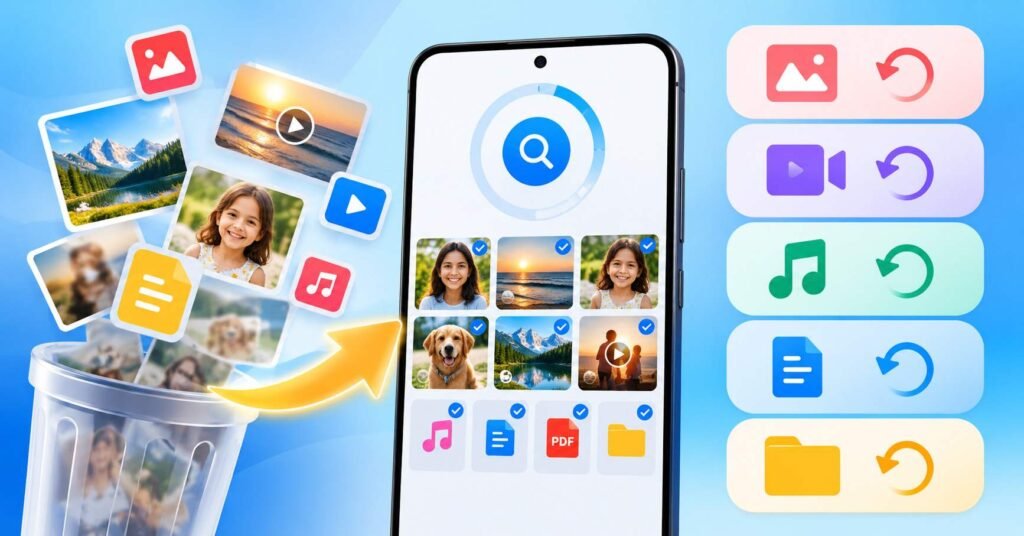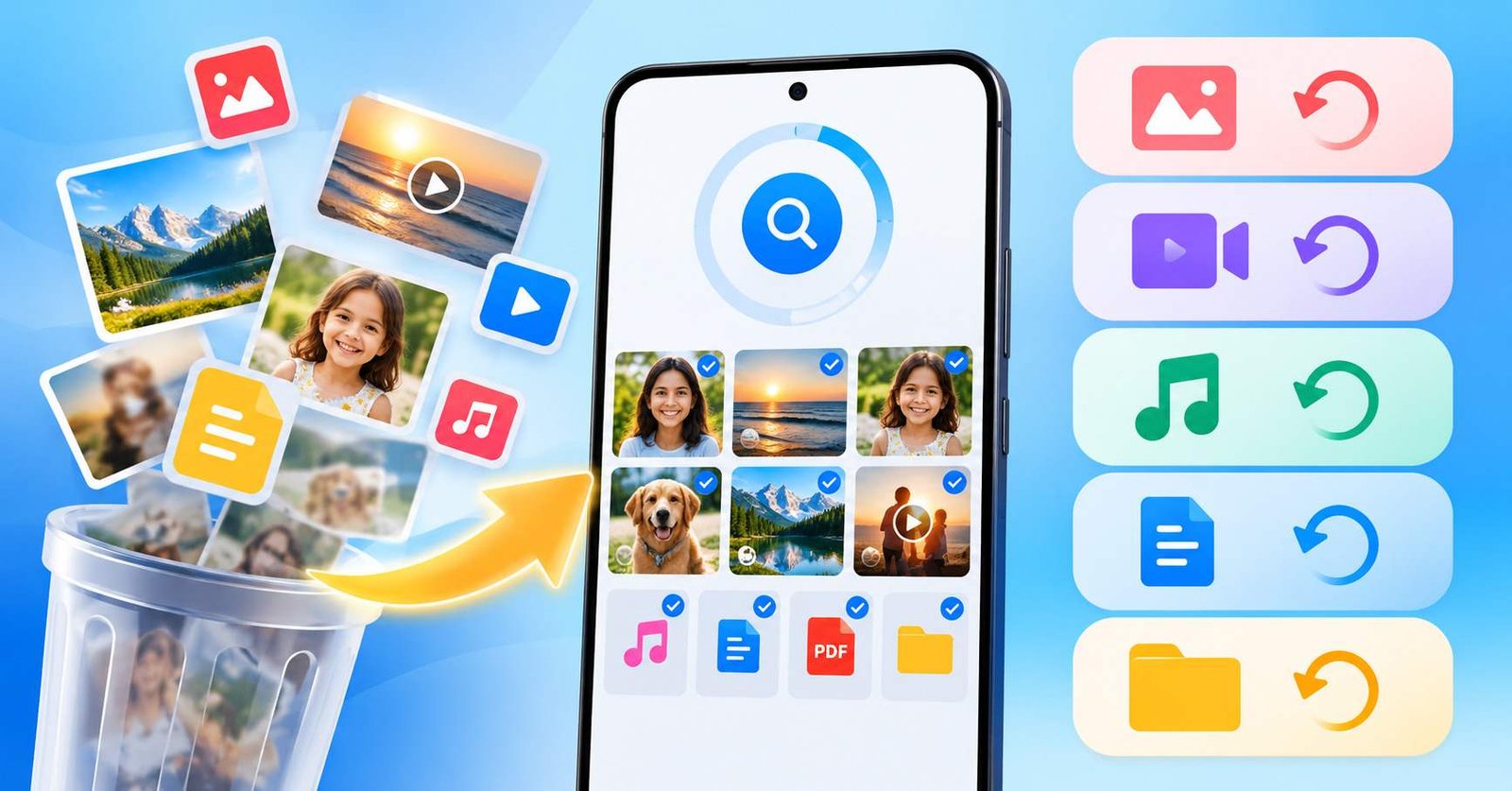
Accidentally deleting an important photo, video, audio file, or document can be stressful. This is why many Android users search for free data recovery software for Android.
Android data recovery software is designed to scan accessible phone storage or an SD card and look for files that may still be recoverable after deletion. Apps such as File Recovery – Photo Recovery are built around this idea, offering scans for photos, videos, audio, documents, and other media without requiring root access.
However, one thing is important to understand before installing any recovery app: no Android recovery tool can guarantee that every deleted file will come back.
Recovery depends on where the file was stored, how it was deleted, whether another copy still exists, and whether the storage space has already been reused.
Quick Answer
Free Android data recovery software scans your phone or SD card for deleted, hidden, cached, or otherwise recoverable files.
It may help restore recently deleted photos, videos, audio files, and documents, but success is not guaranteed.
For the best chance of recovery:
- Stop creating new files after accidental deletion
- Check Gallery Trash first
- Check Google Photos and cloud backups
- Check messaging app folders
- Check the SD card separately
- Run a recovery scan only after checking easier recovery options
The most important point is that finding a file during a scan does not always mean the original deleted file has been fully recovered.
Table of Contents
What Is Android Data Recovery Software?
Android data recovery software is an app or desktop tool that searches storage for data that may remain after a file has been deleted.
Depending on the software, it may search for:
- Photos
- Videos
- Audio files
- Documents
- Hidden files
- Cached media
- Thumbnails
- Duplicate copies
- Files stored on an SD card
- Some app-related media
Different recovery apps use different scanning methods.
Some simply locate copies that still exist in hidden or cache folders, while more advanced tools may attempt to identify recoverable file data from storage.
How File Recovery – Photo Recovery Works
File Recovery – Photo Recovery is an Android recovery utility designed to scan a phone or SD card for recoverable files.
According to its feature description, users can start a scan and allow the app to search for:
- Deleted photos
- Deleted videos
- Deleted audio
- Documents
- Other files
- Hidden files
- Files stored on an SD card
After scanning, users can choose files to restore or permanently remove.
The app also offers filters based on details such as date, file size, and folder, which can be useful when a scan returns a large number of results.
What Happens When You Delete a File on Android?
Deleting a file does not always produce the same result.
Several different things may happen depending on your phone, Android version, app, and storage type.
The File May Still Be in Trash
Many Android gallery apps now include a Recently Deleted or Trash folder.
If the file is still there, recovery software is unnecessary.
A Cloud Backup May Still Exist
Photos or videos may still be available through services such as:
- Google Photos
- Google Drive
- OneDrive
- Dropbox
- Manufacturer cloud backup services
Checking cloud backup should usually come before running a recovery scan.
Another Copy May Exist
A photo may still exist inside:
- Telegram
- Messenger
- Downloads
- Screenshots
- Editing app folders
- Browser cache
- Social media cache
A recovery tool may sometimes find one of these copies.
Only a Thumbnail May Remain
Android apps often create small preview versions of photos.
A recovery scan might find a thumbnail even when the original full-resolution image has already disappeared.
This explains why some recovery apps display many photos but restore them only at lower quality.
Why Recovery Apps Sometimes Show Hundreds of Images
This is something many users misunderstand.
A recovery scanner may display:
- Existing photos
- Cached photos
- Thumbnails
- WhatsApp media
- Browser images
- Social media assets
- Duplicate images
- Hidden images
- Previously downloaded pictures
Therefore, seeing hundreds of scan results does not necessarily mean the app has recovered hundreds of deleted photos.
When checking a recovered image, look at:
- Resolution
- File size
- Folder location
- Image quality
- Creation date
- Whether it opens correctly
These details help determine whether you recovered the original or only a smaller copy.
Can Android Recovery Apps Recover Permanently Deleted Photos?
Sometimes, but not always.
A deleted photo may be recoverable if useful data still remains somewhere on the phone or SD card.
Recovery becomes much less likely when:
- Storage has been overwritten
- The phone was used heavily after deletion
- The device was securely reset
- Encryption keys were removed
- The file existed only inside protected app storage
- The storage hardware is damaged
This is why no legitimate recovery method should be treated as a 100% guarantee.
Why You Should Stop Using the Phone After Accidental Deletion
If an important file has just been deleted, avoid unnecessary phone activity.
Try not to:
- Record new videos
- Take many new photos
- Download large files
- Install several recovery apps
- Install games
- Run storage cleaners
- Download offline movies
- Move large amounts of data
New data may consume storage space that could otherwise contain recoverable information.
Installing multiple recovery tools can itself create more files.
A better approach is to check built-in recovery options first and then use one trusted recovery app.
What Should You Check Before Installing Recovery Software?
Before scanning your whole phone, check these locations.
Gallery Trash
Open the phone’s Gallery app and look for:
- Trash
- Recycle Bin
- Recently Deleted
Many phones temporarily retain deleted photos and videos.
Google Photos
Open Google Photos and check its Trash section.
If cloud backup was enabled, the file may still be available even if it was removed from the phone.
File Manager Trash
Some Android file managers also keep deleted files temporarily.
Cloud Backup
Check any cloud service you use regularly.
Messaging Apps
Photos and videos may remain in chat folders even if they are missing from Gallery.
SD Card
If the deleted content was stored on a removable SD card, check the card separately.
What Does Deep Scan Mean?
Many file recovery apps advertise a deep scan feature.
A deep scan generally means the software searches more storage locations or performs a broader search than a basic scan.
It may locate:
- Hidden files
- Cached files
- Thumbnails
- Additional media folders
- SD card files
- Residual file information
However, deep scan does not mean unlimited recovery.
It cannot guarantee the restoration of data that has already been completely overwritten or securely erased.
Think of deep scanning as searching more thoroughly, not as a promise that every deleted file can be restored.
Can It Recover Deleted Videos?
Video recovery is possible in some cases, but videos are generally harder to recover than photos.
Video files are usually much larger.
If part of a video has been overwritten, the recovered file may:
- Fail to play
- Freeze
- Contain missing sections
- Have damaged audio
- Be completely unusable
This is why successfully finding a video filename is not the same as successfully recovering the video.
Always test recovered videos before deleting any backup or original source.
Can It Recover Deleted Audio?
The app also supports scanning for audio files.
Possible recoverable audio may include:
- Voice recordings
- Music files
- Downloaded audio
- Saved sound files
- Other supported audio formats
Again, successful recovery depends on whether usable data remains in accessible storage.
Can It Recover Deleted Messages?
The app description also mentions support for recovering deleted messages from supported applications.
This feature should be understood carefully.
Modern messaging apps may store messages inside:
- Encrypted databases
- Protected app folders
- Cloud backups
- Notification records
- Local databases
- Cache files
Android security prevents ordinary apps from freely reading another app’s protected private data.
Therefore, users should not assume that a no-root recovery app can restore every deleted message from every messaging service.
Results will depend on the specific app, backup availability, permissions, and how the data was originally stored.
Does File Recovery Require Root Access?
File Recovery – Photo Recovery says it can operate without root.
For most users, this is preferable because rooting a phone can create additional risks.
Root access can affect:
- Device security
- Banking apps
- Digital payment apps
- System updates
- Device integrity checks
- Warranty support in some cases
However, no-root recovery also means the app has less access to protected areas of Android.
This is another reason users should keep realistic expectations about what can be restored.
Can an SD Card Be Easier to Recover?
Sometimes.
Files stored on removable SD cards can behave differently from files stored inside modern encrypted phone storage.
If important files were deleted from an SD card, consider stopping use of the card immediately.
Avoid:
- Recording new photos to it
- Copying files onto it
- Formatting it again
- Using storage-cleaning tools
For highly valuable data, removing the card and using desktop recovery software may sometimes be preferable to continuing to write data to the card.
What Is Batch Recovery?
Batch recovery allows users to select several files and restore them together.
This is useful when:
- Many photos were deleted
- An entire folder disappeared
- Multiple audio files need recovery
- A large group of images was accidentally removed
Instead of restoring each item individually, the user can select multiple files at once.
What Is the Permanent Delete Feature?
File Recovery – Photo Recovery also includes a permanent deletion option.
This feature is different from recovery.
It is designed to remove files that users no longer want.
This could be useful for:
- Old private photos
- Duplicate media
- Unwanted files
- Sensitive files
However, use this feature carefully.
Do not permanently delete anything during a recovery session until you have confirmed that all important files have been successfully restored.
What Is Photo Enhancement?
The app also includes a photo enhancement feature.
Photo enhancement and file recovery are two different things.
Recovery attempts to restore available image data.
Enhancement attempts to improve an image that already exists.
Enhancement may try to improve:
- Sharpness
- Clarity
- Resolution
- Contrast
- Details
If only a low-resolution image remains, enhancement may make the image look better.
However, enhancement cannot recreate the exact original pixels that no longer exist.
Can File Recovery Work Without Internet?
The app description says file recovery can work without an internet connection.
That makes sense because scanning local phone storage does not necessarily require access to the internet.
However, individual app features, advertising, purchases, or updates may still use an internet connection when available.
Users should review the actual permissions and network behaviour of the installed version.
Is Free Android Data Recovery Really Free?
This needs a careful answer.
Some Android recovery apps are free to install but may include:
- Advertising
- In-app purchases
- Premium recovery features
- Subscription plans
- Paid enhancement tools
- Recovery limits
Therefore, when users search for data recovery software for Android free, they should check exactly which features are available without payment.
A free installation does not always mean every recovery function is unlimited.
What Permissions Should a Recovery App Need?
A recovery tool may legitimately need permission to access media that it is expected to scan.
Depending on the Android version, you may see permissions for:
- Photos
- Videos
- Music and audio
- Files
- Media
Newer Android versions provide more granular storage permissions than older versions.
Users should avoid granting unnecessary permissions.
For example, if you only want to recover photos, examine why an unrelated permission is being requested before allowing it.
Can Data Recovery Software Recover Files After Factory Reset?
Users should have very conservative expectations after a modern Android factory reset.
Modern Android devices commonly use encrypted storage.
A factory reset can remove important encryption information and recreate user storage.
In that situation, data remaining physically inside flash storage may still be impossible to decrypt.
So users should not assume that a mobile recovery app can restore all files from a factory-reset phone.
Backup is far more reliable than post-reset recovery.
Why Android Internal Storage Recovery Is Difficult
Modern phones do not work like old computer hard drives.
Android devices commonly use:
- Flash memory
- Encryption
- App sandboxing
- Scoped storage
- Garbage collection
- Wear levelling
- Storage security controls
These technologies are good for security and device reliability, but they can make deleted-file recovery more difficult.
That is why Android recovery results can differ greatly between devices.
When File Recovery – Photo Recovery May Be Useful
The app may be worth trying when:
- You recently deleted photos
- Videos disappeared
- Audio files were accidentally removed
- You want to scan an SD card
- You want to find hidden media
- Gallery Trash is already empty
- Cloud backups do not contain the missing file
- You want a no-root scanning option
The app should be treated as a recovery tool, not as a guarantee that all deleted data can be restored.
When a Recovery App May Not Help
Recovery apps are less likely to succeed when:
- The phone was factory reset
- Storage has been heavily overwritten
- The phone has physical storage damage
- The deleted file was securely erased
- The content existed only inside protected encrypted storage
- The phone can no longer read the storage device
- The required encryption key no longer exists
In these situations, professional data recovery may sometimes be necessary, and even professional recovery cannot guarantee success.
Best Android File Recovery Order
If you accidentally delete an important file, use this order:
- Stop unnecessary phone usage.
- Check Gallery Trash.
- Check Google Photos Trash.
- Check the Files app or Recycle Bin.
- Check cloud backups.
- Check WhatsApp and other messaging folders.
- Check SD card storage.
- Run one trusted recovery scanner.
- Save recovered files safely.
- Open and verify every important recovered file.
- Back up recovered files to another device or cloud service.
This approach is safer than immediately installing several recovery applications.
How to Check Whether Recovery Was Successful
Do not judge recovery only by the number of results displayed.
After restoring a file, check:
- Does the photo open correctly?
- Is the resolution close to the original?
- Is the file size reasonable?
- Does the video play from beginning to end?
- Is the audio complete?
- Is the recovered document readable?
- Is the file corrupted?
- Is it only a thumbnail?
A file that appears in a scan but cannot be opened should not be considered successfully recovered.
Should You Restore Files to the Same Storage?
When possible, avoid saving recovered files back into the same location you are still scanning.
Writing new files to the same storage may overwrite other potentially recoverable data.
For important recovery work, consider saving restored files to:
- A different folder
- An SD card
- Another phone
- A computer
- Cloud storage
This can reduce unnecessary writes to the affected storage area.
Is File Recovery – Photo Recovery Worth Trying?
File Recovery – Photo Recovery may be useful for ordinary Android users who want a simple way to scan for recently deleted photos, videos, audio, and other accessible files.
Useful features include:
- Photo recovery
- Video recovery
- Audio recovery
- File scanning
- SD card scanning
- Batch recovery
- File filtering
- No-root operation
- Permanent deletion
- Photo enhancement
But its usefulness depends on what remains on the device.
A user should not expect the app to recover every file after every type of deletion.
For an accidentally deleted recent photo or video, it may be worth trying after checking built-in Trash folders and backups.
Frequently Asked Questions
What is data recovery software for Android?
It is software that scans accessible Android storage for files that may still be recoverable after deletion.
Can I recover deleted photos on Android for free?
Sometimes. Start with Gallery Trash and Google Photos because those may restore the original file without additional recovery software. Recovery apps may also find recoverable copies.
Can Android recovery apps recover permanently deleted photos?
Sometimes, but not always. Recovery depends on whether usable file data or another copy remains.
Does File Recovery – Photo Recovery need root?
The app description says root access is not required.
Can it recover deleted videos?
The app supports video scanning and recovery, but success depends on the condition of the deleted video data.
Can it recover files from an SD card?
The app description includes support for scanning and recovering files from SD cards.
Should I keep using my phone after deleting a file?
It is better to minimize phone usage until recovery is attempted because new data may reduce recovery possibilities.
Can it recover files after a factory reset?
Recovery after a modern Android factory reset is much more difficult because encrypted storage and encryption keys may have been reset.
Final Takeaway
Data recovery software for Android is useful for finding files that may still exist somewhere in accessible phone or SD-card storage after deletion.
File Recovery – Photo Recovery offers tools for scanning photos, videos, audio, and other files without root access. It also includes batch recovery, filters, SD-card support, permanent deletion, and photo enhancement.
However, the most important thing to remember is that recovery software cannot restore data that no longer exists in a usable form.
If you accidentally delete an important file, first check Trash folders and backups, stop unnecessary phone usage, and then run a trusted recovery scan.
The best time to think about data recovery is actually before something is deleted. Regular backups to Google Photos, cloud storage, a computer, or an external drive remain the safest way to protect important files.
Editorial Disclosure
tnai.in publishes independent app news, mobile technology explainers, app guides, and informational content.
tnai.in is not affiliated with Google Play, Google, AI Photo Team, or any app developer unless clearly stated.
App names, logos, trademarks, and brand names belong to their respective owners. Features, pricing, permissions, and availability may change over time.
Readers should verify important information through the official app-store listing and developer information before installing an app, granting permissions, or making a purchase.