Quick Answer
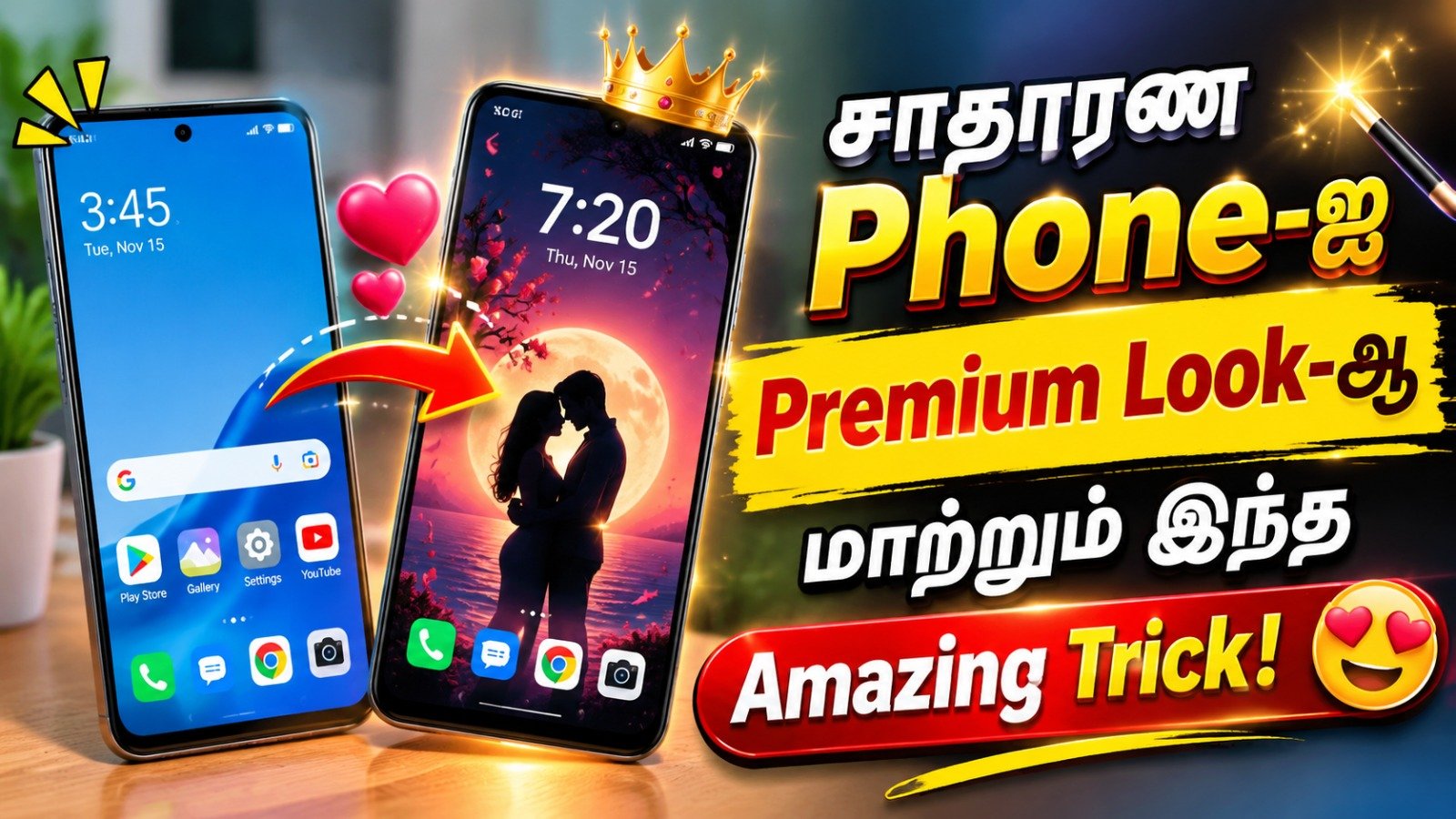
Nil Launcher – Theme, Folder is an Android home-screen replacement that offers themes, customisable folders, widgets, and icon settings. It may suit users who want more control over how their apps are arranged. Start with a small layout, test theme changes before customising everything, and keep your original launcher available so you can switch back easily.
A new home screen should help you find things faster. Looking attractive is a bonus, but it becomes less useful if you spend more time searching for your banking app, opening the wrong folder, or moving widgets back into place.
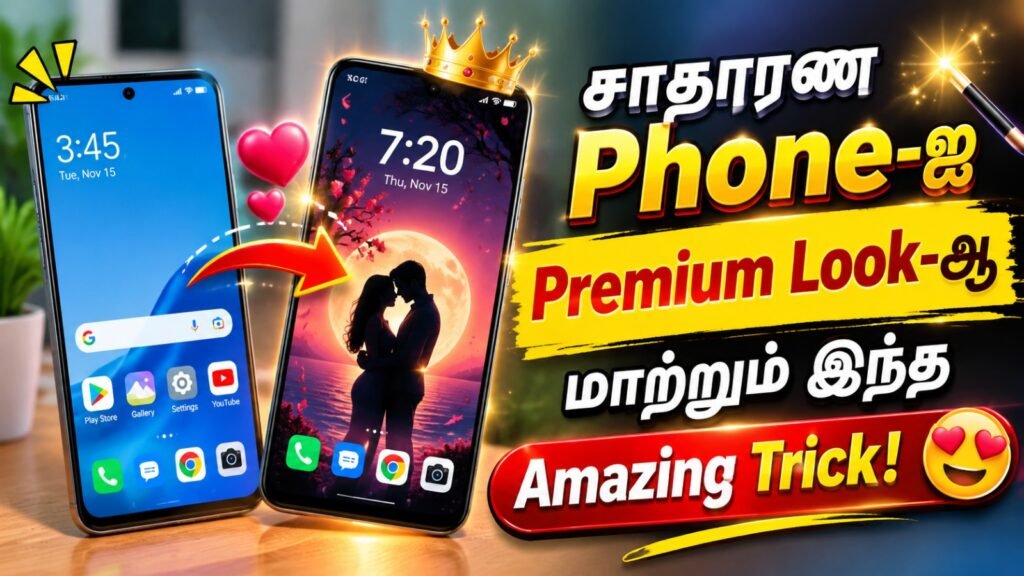
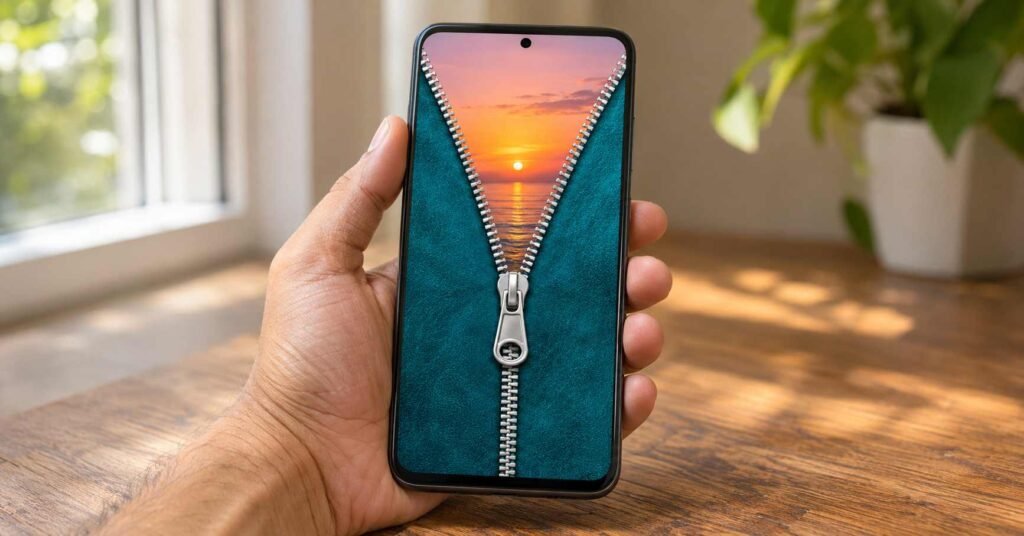
Nil Launcher combines visual customisation with tools for organising apps. Its promotional images show coordinated colours, large widgets, and distinctive folder layouts. Those designs can provide inspiration, but the best arrangement for your phone depends on how you actually use it.
Someone who mainly calls, messages, and takes photographs needs a different layout from someone who regularly uses travel tickets, work tools, and authentication apps. Copying a promotional screenshot without considering those differences can create a home screen that looks organised but feels awkward.
This guide takes a practical approach: choose what belongs on your first screen, test the launcher with everyday tasks, and then decide whether its design options are worth keeping.
Quick Overview
| Detail | What to know |
|---|---|
| App | Nil Launcher – Theme, Folder |
| Developer | lwsoftipl Apps |
| Platform | Android |
| Main purpose | Home-screen organisation and personalisation |
| Monetisation | Contains ads and in-app purchases |
| Advertised tools | Themes, folders, widgets, icon controls, app search, App Lock, and Hide App |
| Best starting point | One simple home screen with essential apps |
| Main precaution | Test layout changes before investing time in a full setup |
The app’s official listing confirms these features and its advertising model.
What Changes When You Install a Launcher?
A launcher manages the home-screen interface you use to open and organise apps. It does not replace Android itself.
Changing your launcher can change how you reach an app without changing the app’s contents. For example, your messaging shortcut may appear in a different position, while your conversations remain inside the messaging app.
Treat the change as a new arrangement of your phone’s front page. Before experimenting, take screenshots of your existing screens so you have a reference for important shortcuts and widgets.
Start With Tasks, Not Colours
Before selecting a theme, identify the actions you repeat most often.
Your first screen might need only:
- Calling and messaging.
- Camera.
- Maps.
- Your main payment or banking app.
- A calendar or useful reminder widget.
Keep less frequent tools elsewhere. The aim is to reduce the number of decisions you make each time you unlock your phone.
An authentication app is a useful example. You may open it less frequently than social media, but when you need a sign-in code, finding it quickly matters. Put it somewhere predictable rather than burying it in a miscellaneous folder.
Use Folders to Make Apps Easier to Find
Nil Launcher advertises drag-to-create folders and options for changing their size and appearance.
The practical benefit depends on how you group your apps.
Task-based names are often easier to understand than broad labels such as “Other” or “Tools.”
| Folder idea | Apps you might group together |
|---|---|
| Travel | Maps, tickets, accommodation, and ride services |
| Money | Banking, payments, and expense tracking |
| Work | Email, documents, meetings, and authentication |
| Photos | Camera tools, gallery, and editing apps |
Avoid creating so many folders that opening one becomes another search task. Keep your most-used apps directly accessible if a folder adds an unnecessary step.
A larger folder is useful only if its contents remain easy to recognise. Check how it looks at your normal viewing distance, not just while you are carefully editing the screen.
Test a Theme Before Customising Everything
A theme change may affect more than colours. Before spending an hour arranging your phone, find out what happens to a small test layout.
One Google Play reviewer reported losing custom arrangements after switching themes. This is an individual report rather than a confirmed result for every device, but it identifies a useful check.
Try this sequence:
- Add two app shortcuts.
- Create one folder.
- Place one widget.
- Change the theme.
- Check whether their positions and settings remain intact.
Also look for a layout backup or export option. Its availability was not verified for this guide, so do not assume your arrangement can be restored automatically.
If you cannot find one, screenshots can help you rebuild the layout, although they do not function as a backup.
Choose Widgets That Save You an Action
Nil Launcher lists several widget types and support for system widgets.
Start with one or two that answer a question you regularly ask. A calendar widget may help if you often check your next appointment. A decorative clock offers less practical value if another clock is already clearly visible.
After adding a widget, check:
- Whether its information updates.
- Whether tapping it opens the expected app.
- Whether text remains readable.
- Whether it occupies space you need for shortcuts.
For weather, verify the displayed location instead of assuming it has detected your city correctly.
App Hiding Is Not the Same as Secure Storage
The listing advertises password-based App Lock and fingerprint-based app hiding.
However, hiding an icon does not by itself establish that the app’s data is encrypted or inaccessible through other routes.
If you use these features, check what happens when you open the app through a notification, a link, or Android’s recent-apps screen. Review notification previews separately, because sensitive information may appear outside the launcher.
Keep your phone’s normal screen lock enabled. Do not treat a launcher feature as a replacement for device security.
Privacy and Permissions: Read Beyond the Summary
The developer’s privacy policy says launcher settings, folders, and layouts remain on the device, with no account or cloud storage required for that data.
The same policy explains that advertising services may collect information such as device identifiers, approximate location, usage data, and diagnostics. It also describes optional notification access for badges and media information.
This distinction matters: locally stored home-screen settings do not necessarily mean that every connected service operates without data collection.
Read each permission explanation before enabling a feature. If you only want basic folders and a different layout, evaluate those first before turning on additional integrations.
The policy covers the developer’s applications generally, so it should not be treated as an exact list of prompts that will appear on every Nil Launcher installation.
How to Set Nil Launcher as Your Home App
After installation, Android may ask which home app you want to use. You can also usually change it through:
Settings → Apps → Default apps → Home app
Select Nil Launcher. Menu names vary by device, so search Settings for “Home app” or “Default apps” if necessary.
Keep your original launcher installed. Before making extensive changes, practise switching between the two so you know how to return.
Run a Five-Minute Everyday Test
A launcher should work well during ordinary use, not only while you customise it.
Try these actions:
| Action | What to check |
|---|---|
| Open your most-used apps | Can you find them without hesitation? |
| Return Home from another app | Does the expected screen appear? |
| Open a notification | Does it take you to the correct content? |
| Use recent apps and navigation gestures | Does switching feel comfortable? |
| Lock and unlock the phone | Does the layout remain usable? |
| Restart the device | Are your shortcuts and widgets still arranged correctly? |
Observe advertising during your trial as well. Decide whether its placement interrupts your routine before making an optional purchase.
Limitations to Consider
Nil Launcher adds another interface to learn and maintain. A highly customised layout can also take time to rebuild if you change your mind.
Specific purchase prices, layout-backup support, and performance on your device were not established for this guide. A different appearance should not be taken as proof of faster performance or better battery life.
If your current launcher already supports the folders and widgets you need, reorganising it may be enough.
Who Should Try It?
| Your goal | Suggested approach |
|---|---|
| A distinctive, coordinated home screen | Try a theme with a small test layout |
| Faster access to everyday apps | Start with folders and essential shortcuts |
| Maximum simplicity | Compare a minimal setup in your existing launcher first |
| Strong protection for sensitive information | Use established device and app security controls |
| No time for customisation | Keep your current layout until you can test properly |
How to Switch Back and Uninstall
Open Android Settings and select your previous launcher as the default Home app.
Once it is working, go to:
Settings → Apps → Nil Launcher → Uninstall
Save any layout references you want before removing the app. The developer says launcher data is stored locally, so do not assume your customised arrangement will return after reinstalling.
Frequently Asked Questions
Does Nil Launcher replace Android?
No. It replaces the home-screen experience used to organise and open apps. It does not install a different operating system.
Will changing the launcher delete my photos or messages?
Changing the default home app does not normally delete content stored inside other apps. Your shortcut arrangement may change, but that is separate from those apps’ data.
Will a theme change preserve my layout?
Do not assume so. Test a small arrangement first and check for backup options before customising every screen.
Does hiding an app make it completely private?
No. Hidden icons, notifications, recent apps, and stored data are separate concerns. Check each relevant access route.
Can Nil Launcher make an old phone faster?
This guide does not establish a performance improvement. Test responsiveness on your own phone rather than relying on appearance or promotional claims.
Can I return to my original home screen?
Yes, provided the original launcher remains available. Select it under Android’s default Home app settings.
Final Recommendation
Nil Launcher is worth trying if you want more control over folders, widgets, and the appearance of your Android home screen.
Begin with one useful page, check what a theme change does, and test everyday navigation before committing to a detailed setup. If it takes longer to find your apps after customising, simplify the arrangement.
The best result is a home screen that makes your regular tasks easier.
View Nil Launcher – Theme, Folder on Google Play
Developer support: support@lwsipl.com
Developer privacy policy
Editorial disclosure: TNAI.in publishes independent app guides based on public sources and practical editorial analysis. This article is not a hands-on review or security audit. Features, permissions, prices, and availability may change. Verify essential details through official sources before installing or purchasing.