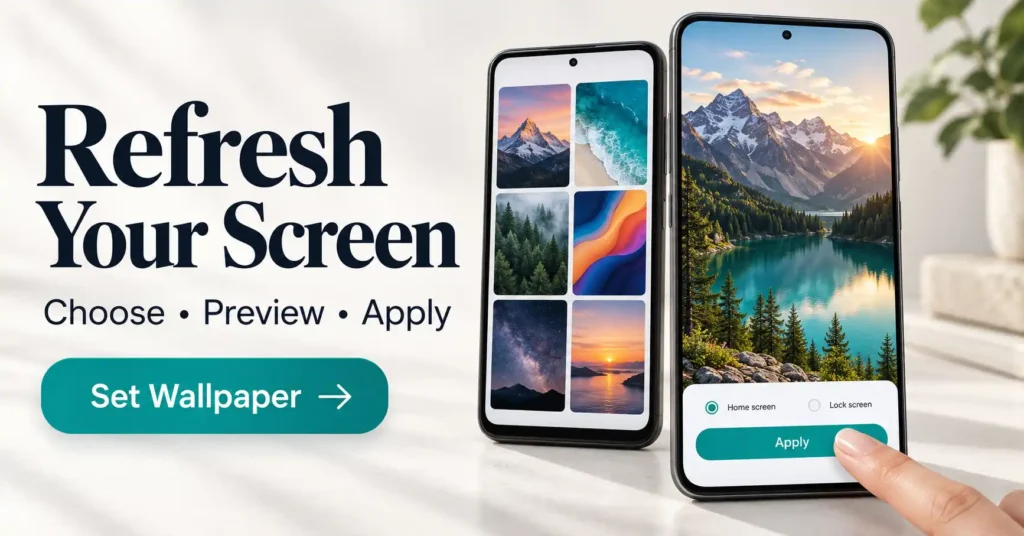
Quick answer: Install QHD Wallpapers 4K & HD by Android Station from Google Play. Open a wallpaper, load its preview, and look for the apply or set-wallpaper control. Choose your home screen, lock screen, or both when your phone offers those options. You can also save an image and apply it through your phone’s wallpaper settings.
Learning how to use QHD Wallpapers is useful if you want a fresh phone background without spending time searching through random image websites. The app brings different styles together, including nature scenes, anime, simple backgrounds, and dark designs.
Start with one wallpaper that makes your screen easier to read. A detailed picture may look great on its own but compete with app names, widgets, and your lock-screen clock. A quieter background often works better behind a busy home screen.
There is also a difference between saving an image and applying it. Saving keeps a copy on your device. Applying changes the background you see on a selected screen. Once you understand that difference, it becomes much easier to switch designs and keep a small collection of favorites.
This guide covers the basic setup, paired wallpapers, automatic changes, and common problems. The feature descriptions come from the developer’s listing; button names and menu locations may differ with the installed version and your phone. The instructions below describe the expected workflow, rather than a hands-on test of every control.
Quick Overview
| Task | What to do |
|---|---|
| Change one background | Open an image, preview it, and choose the apply control. |
| Keep a copy | Use the wallpaper’s save or download control. |
| Match both screens | Explore the Double wallpapers collection. |
| Change images regularly | Set up the auto wallpaper changer with a saved collection. |
| Use time-based scenes | Explore All-day wallpapers. |
| Check costs | Review ads, premium access, and purchase terms before paying. |
How to Set Your First Wallpaper
- Install the correct app. Open the official Google Play listing and check that the developer is Android Station.
- Choose a style. Browse a category or use search. Try a clear term such as “mountains,” “minimal,” or “dark” instead of a long sentence.
- Open the image. Let the full preview load before judging its sharpness.
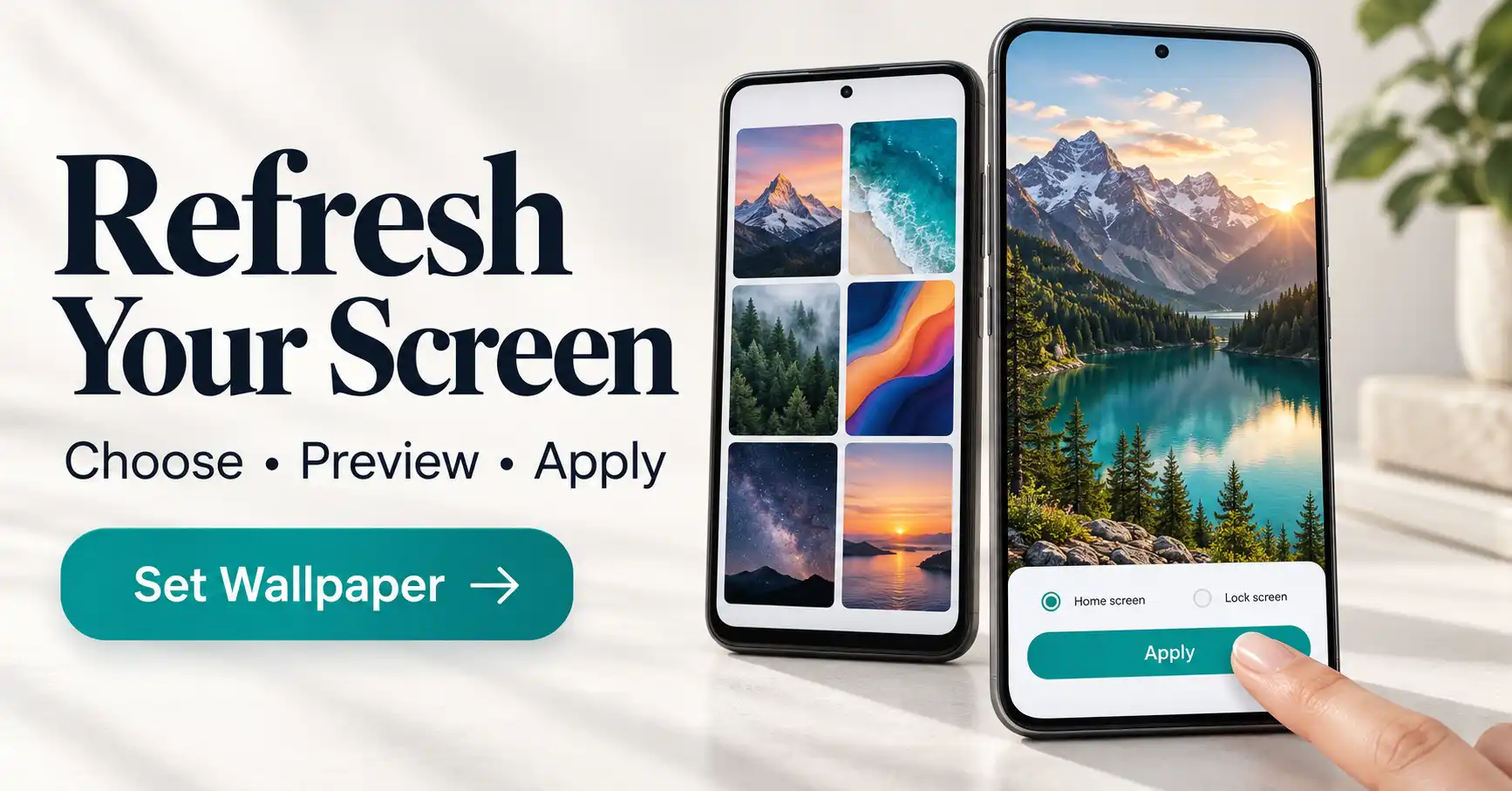
- Look for the apply control. Follow the app’s prompt and any Android wallpaper preview that opens.
- Choose the destination. Select home screen, lock screen, or both if those choices appear.
- Check the result. Return home, then lock and wake your phone. Make sure the subject, clock, and icons are easy to see.
For a first attempt, choose a portrait image with its main subject near the center. This gives you room to adjust its placement if your phone changes the framing.
How to Save a Wallpaper and Apply It Later
Open the wallpaper and look for its download or save control. If a permission prompt appears, read what it requests and allow only the access needed for that action. The app’s exact save location can vary, so check your Gallery, Photos, or Files app for the downloaded picture.
If applying from the wallpaper app fails, use your phone’s own settings. On a Pixel, touch and hold an empty home-screen area, open Wallpaper & style, and choose a photo through the wallpaper options. Preview it and apply it to the available screen destination. Other Android brands use different menu names. Google’s Pixel wallpaper guide explains the supported route.
Keep the original downloaded image rather than taking a screenshot of the preview. A screenshot can include controls and may have fewer useful image pixels.
Double Wallpapers, All-Day Scenes, and Automatic Changes
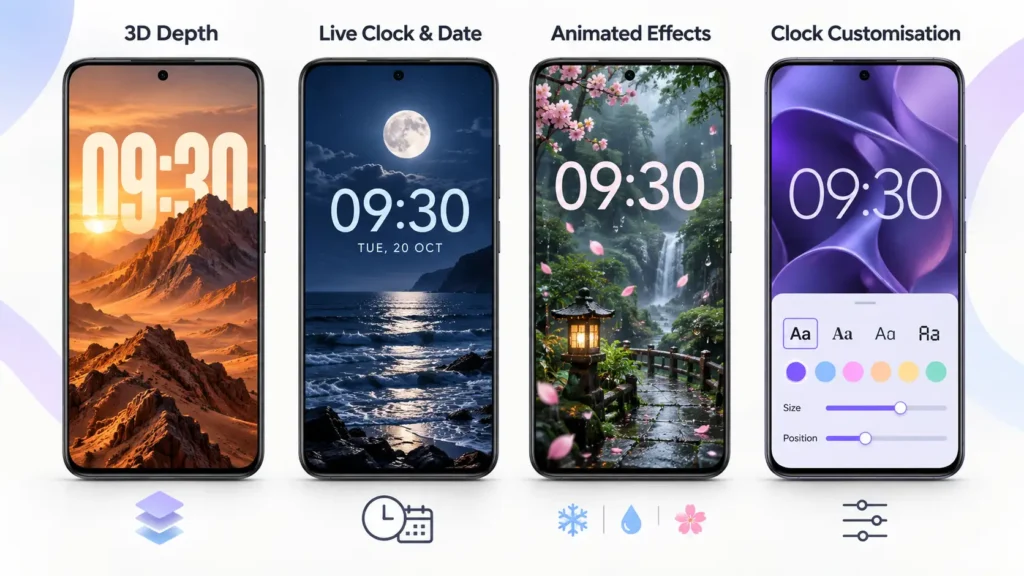
Double wallpapers are matching home-screen and lock-screen designs. Choose a pair, then follow the prompts to apply each part. Check both screens afterward; the phone may ask you to confirm them separately.
All-day wallpapers are designed to change with the time of day. Explore that collection and follow the activation instructions for the design you choose. A time-based wallpaper is different from simply rotating unrelated pictures.
The auto wallpaper changer rotates wallpapers from a saved collection. The developer advertises intervals starting at 15 minutes. To get started:
- Build a small saved collection.
- Find the auto-change feature in the app’s controls or settings.
- Select the collection if the app asks you to.
- Choose an available interval and screen destination.
- Enable the feature and check it after an interval has passed.
Start with a longer interval if you prefer fewer visual changes. Do not assume that both screens will rotate independently; use the choices available on your device.
Will Every Wallpaper Fit Without Cropping?
The developer advertises screen-fitting images without cropping. Still, check the final preview on your own phone. Screen shape, wallpaper zoom, and the launcher can affect what remains visible.
For example, a wide landscape picture cannot fill a tall screen while keeping every edge visible unless it is adapted, stretched, or shown with empty space. If a face or important detail disappears, try adjusting the preview or choosing another composition.
The app also advertises many downloads below 1 MB. That refers to individual wallpaper files, not the app’s installation size or its total storage use. Saved images and cached previews can add up over time.
Common Problems and What to Try
| Problem | First step |
|---|---|
| Wallpaper looks blurry | Wait for the full image to load and avoid heavy zooming. |
| Image is cut off | Check the system preview and try a portrait composition. |
| Lock screen stays unchanged | Apply the saved image through the phone’s wallpaper settings. |
| Automatic changes stop | Check that rotation is enabled and the chosen collection is available. |
| Downloads fail | Check your connection, free storage, and any relevant permission prompt. |
| App freezes | Close and reopen it, restart the phone, and check for an update. |
If rotation still stops, check whether your phone has restricted the app’s background activity. Change only the relevant setting if needed, then watch for extra battery use. Avoid clearing app storage as your first fix, because that can remove local settings and collections.
Ads, Purchases, and Privacy
Google Play marks this app as containing ads and in-app purchases. Review the price and whether a purchase is one-time or recurring on the payment screen. Do not assume every collection is free.
The developer’s Play declaration says app activity, performance information, and device identifiers may be collected and shared. It also reports encryption in transit and says data cannot be deleted. These are developer-provided disclosures, not an independent privacy audit.
The linked privacy policy discusses third-party services and a process for requesting deletion of information in the developer’s possession. Because that wording differs from the Play declaration, contact support if deletion is important to your decision.
Bonus App Card
| App | QHD Wallpapers 4K & HD |
|---|---|
| Developer | Android Station |
| Google Play | View the official app |
| Downloads | 10 million+ |
| Rating | 4.5/5 on the web listing checked October 28, 2026; ratings can vary by region and device. |
| Last update shown | October 5, 2026 |
| Release date, version, Android requirement, size | Not confirmed in the accessible listing. Check App info in Google Play on your phone. |
| Support | support@androidstation.info |
| Privacy | Developer privacy policy |
| Official description summary | A wallpaper collection with search, downloads, paired designs, and automatic background changes. |
Which Setup Should You Choose?
| Your preference | Start with |
|---|---|
| A simple, readable screen | One static, uncluttered image. |
| Coordinated screens | A matching Double wallpaper pair. |
| Regular variety | A small collection with automatic rotation. |
| A changing daily mood | An All-day design. |
How to Uninstall QHD Wallpapers
Turn off automatic changes and set a replacement wallpaper through your phone’s settings. Then open the app’s Google Play page and tap Uninstall. Downloaded images may remain in your device’s shared storage; remove unwanted copies using Photos or Files.
If you bought a recurring subscription, uninstalling does not cancel it. Check Google Play → Profile → Payments & subscriptions → Subscriptions and cancel any subscription you no longer want. See Google’s cancellation instructions.
Frequently Asked Questions
Can I use a downloaded wallpaper offline?
A locally saved static image can be applied through your phone’s wallpaper settings without downloading it again. Browsing new online collections needs a connection.
Does a 4K wallpaper turn my screen into a 4K display?
No. An image does not change your display’s physical resolution. Choose a clear image that suits the screen and remains sharp at your preferred framing.
Can I use different home and lock-screen wallpapers?
Use separate destinations when your phone offers them. If the app does not show the option you need, try applying saved images through the phone’s wallpaper settings.
Why is my rating different from the one listed here?
Google Play ratings can differ across regions and device types, and they change over time. Check the rating shown on your own Play Store page.
Conclusion
The easiest way to use QHD Wallpapers is to start with one downloaded image, preview it carefully, and confirm that it looks right on your chosen screen. Once that works, explore matching pairs or automatic changes. Choose the setup that keeps your phone pleasant to look at and easy to use.
More Posts You May Like