Quick Answer
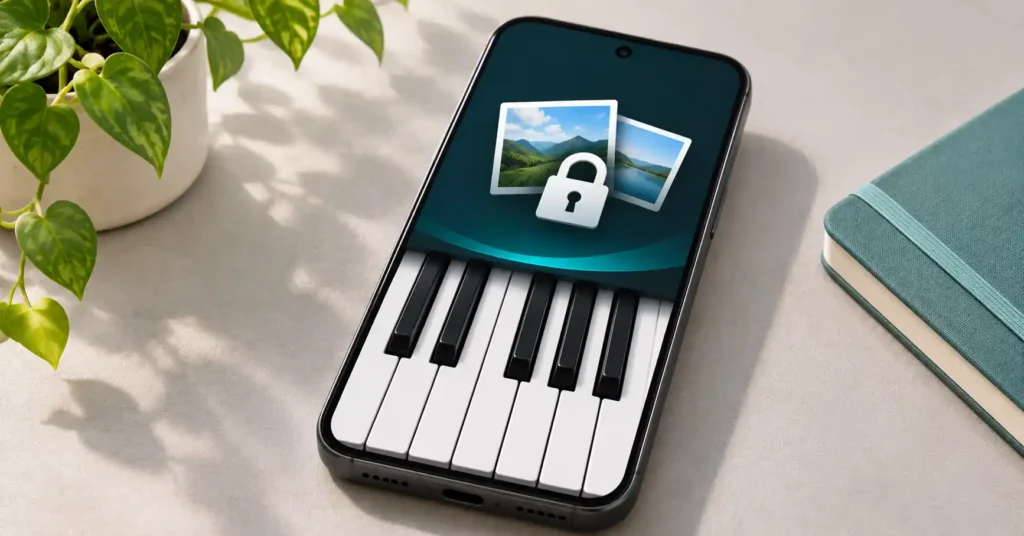
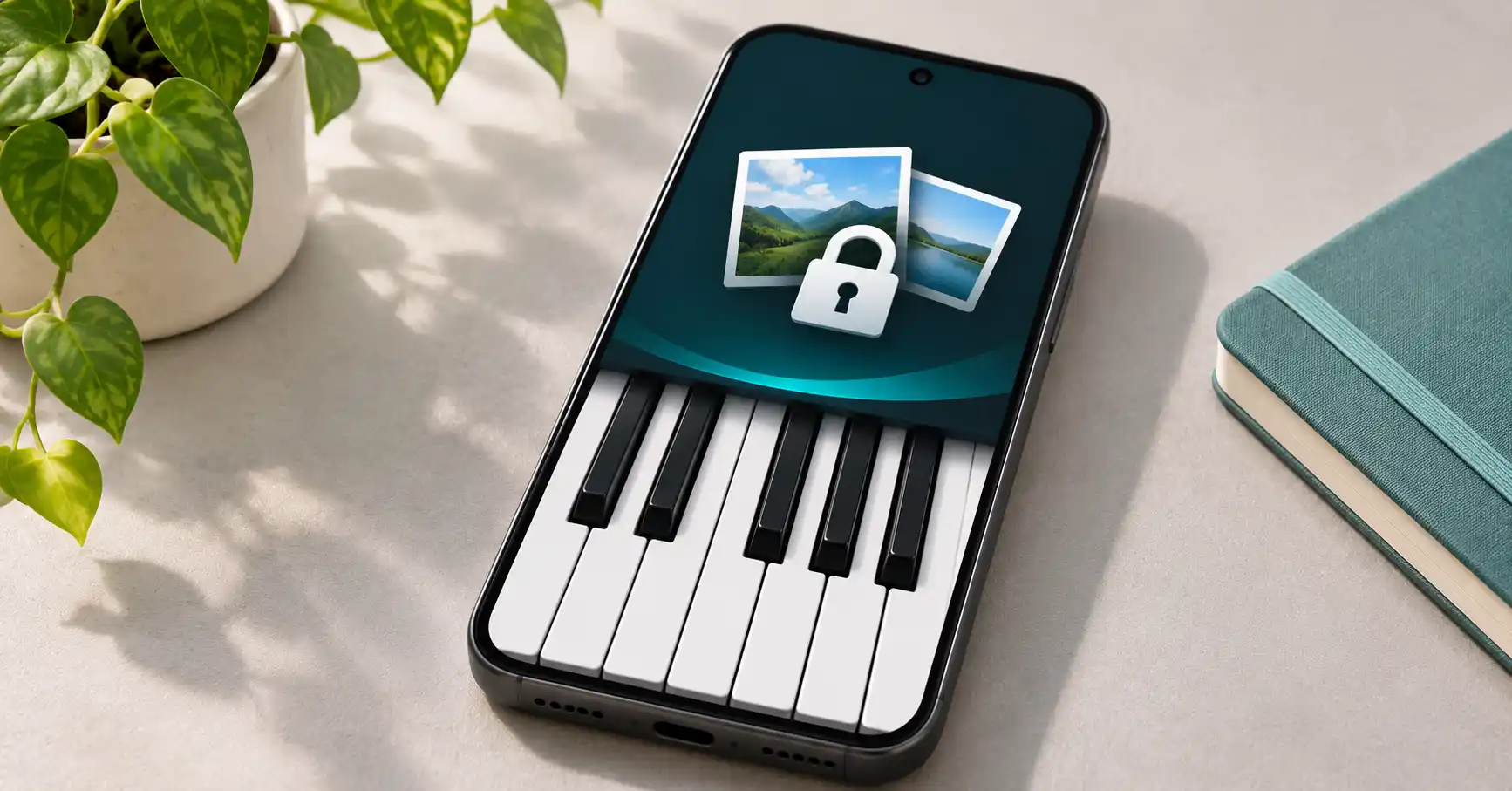
Piano Vault: Hide App & Photos is worth considering for keeping everyday photos out of casual gallery browsing. It uses a playable piano as its cover, with a note sequence to unlock the vault. Before relying on it, hide one spare photo, check where copies remain, then restore and open it outside the vault. For hiding apps, check whether your phone already offers Android Private Space.
What Piano Vault actually hides
The same package appears as Piano Vault: Hide Apps, Videos in the Indian Google Play listing. The developer advertises a gallery vault, app lock and app hiding. Each solves a different problem.
| Feature | What to check on your phone |
|---|---|
| Gallery Vault | Import a spare photo. Look for any remaining copy in Gallery, Files and Google Photos. |
| App Lock | Lock a low-risk app first. Reopen it after switching apps and after restarting your phone to see when the lock appears. |
| Hide Apps | Check whether the icon disappears from your usual launcher and whether notifications, recent apps or Settings still show it. |
A piano cover makes the vault less obvious to someone borrowing your unlocked phone briefly. TNAI could not verify how the app encrypts stored files or how well the lock holds up across phone models. Keep your phone’s screen lock enabled and use the app’s own security controls for banking and payments.
Try one photo before moving an album
- Start with a spare photo and keep a separate copy. Import it into Piano Vault. Close and reopen the vault with your note sequence to confirm it still opens.
- Check the places where the image might still appear. Look in Gallery, Files, your cloud photo library and any chat where you previously sent it. Moving one copy into the vault may leave other copies accessible.
- Restore the photo and open it outside Piano Vault. Check the restored date and where it landed. Try the same with a spare video if you care about preserving audio, quality or editability.
- Check what your backup survives. The listing advertises on-device backup and transfer. If the backup exists only on the old phone, it can be lost with that phone. Before wiping a device, open the transferred files on the new one.
Things to know before installing
- Accessibility. The developer says it uses this for home-screen gestures. Google explains that accessibility access can let an app read screen content and interact with apps, depending on the service. Start with it off for a photo-only trial and check what works.
- Device Administrator. The developer says this supports double-tap to sleep. Leave it off if you do not want that feature. If you enabled it, you may need to deactivate the app’s administrator access before uninstalling.
- Data safety. The developer’s Google Play disclosure says it may collect app activity and app performance information, may share device or other identifiers, and encrypts data in transit. Encryption in transit covers data while it is being sent. The disclosure does not establish how files are encrypted inside the vault.
See the official Piano Vault Google Play listing, Android Help on sensitive settings and accessibility access and Google Play’s guide to Data safety.
Limitations
Hidden photos may still exist elsewhere. A shared copy, edited version, screenshot or cloud upload can remain after you move the original. Check for the specific image before handing over your unlocked phone.
A built-in private browser has limited value if you just need a photo vault. Treat it as a separate browsing feature. TNAI could not verify its tracking protections or browser-data handling.
Restore and transfer matter more than the disguise. The listing advertises a recycle bin and file transfer. Verify the steps with disposable files before relying on either to recover your only copy. If you try the advertised QR transfer, check that the receiving device is yours and open the copied files before clearing the source.
Who should use it and who should skip it?
Try it if your goal is to keep ordinary photos out of view when you briefly lend someone your unlocked phone, and the import and restore test works for you.
Skip it if you need verified storage encryption, guaranteed recovery after losing your phone, or a separate environment for work or payment apps. For those needs, choose a tool with documented protections and keep an independent backup of essential files.
Built-in alternatives worth checking
| Your priority | What to try first |
|---|---|
| Keep photos out of your main gallery | Google Photos Locked Folder. Check whether backup is on. Someone who knows your device screen lock can open the folder. |
| Keep selected apps in a separate space | Android Private Space, available on supported Android 15 and newer devices. Apps in the space are installed separately and may need a fresh sign-in. |
Frequently asked questions
Is Piano Vault free?
The Indian Play listing shows that it contains ads. Check the listing and any in-app prompts for current terms before spending money.
Can I recover a forgotten piano password?
The Play listing describes a recovery flow using a security question or email verification. Follow the current steps in the official listing and confirm your recovery method before importing anything important.
Will hiding an app also hide its notifications?
Test this separately with a low-risk app. Check the notification shade and lock screen. If previews show more than you want, review that app’s Android notification settings.
Can I recover my files if I lose the phone?
Only rely on recovery you have verified. A vault backup stored solely on the lost phone offers no recovery from another device. Keep a separate protected copy of important files.
Does Google Play’s Data safety section prove the vault encrypts photos on my phone?
The listing reports encryption in transit. To assess protection on the device, look for separate developer documentation on how stored files are encrypted and recovered.
How do I uninstall Piano Vault without losing my files?
Restore or export hidden photos and videos first. Open them in Gallery or Files, check the count and confirm your backup. Unhide any apps you want visible again. If you enabled Accessibility or Device Administrator for Piano Vault, turn those off in Settings, then go to Settings → Apps → Piano Vault → Uninstall. Menu labels vary by phone. Follow the same file checks before clearing the app’s storage or resetting the phone.
Editorial disclosure
TNAI prepared this guide from the official Play listing and Google support documentation. TNAI did not install or test the app. Features, permissions and privacy disclosures may change.
Final recommendation
Try Piano Vault with one spare photo if you like the piano disguise and want privacy from casual gallery browsing. Keep it only if you can restore your files easily and you are comfortable with the permissions you use. For everyday photo privacy, check Google Photos Locked Folder first. For a separate home for sensitive apps, check whether your phone supports Android Private Space.